
Set & Send

Set & Send
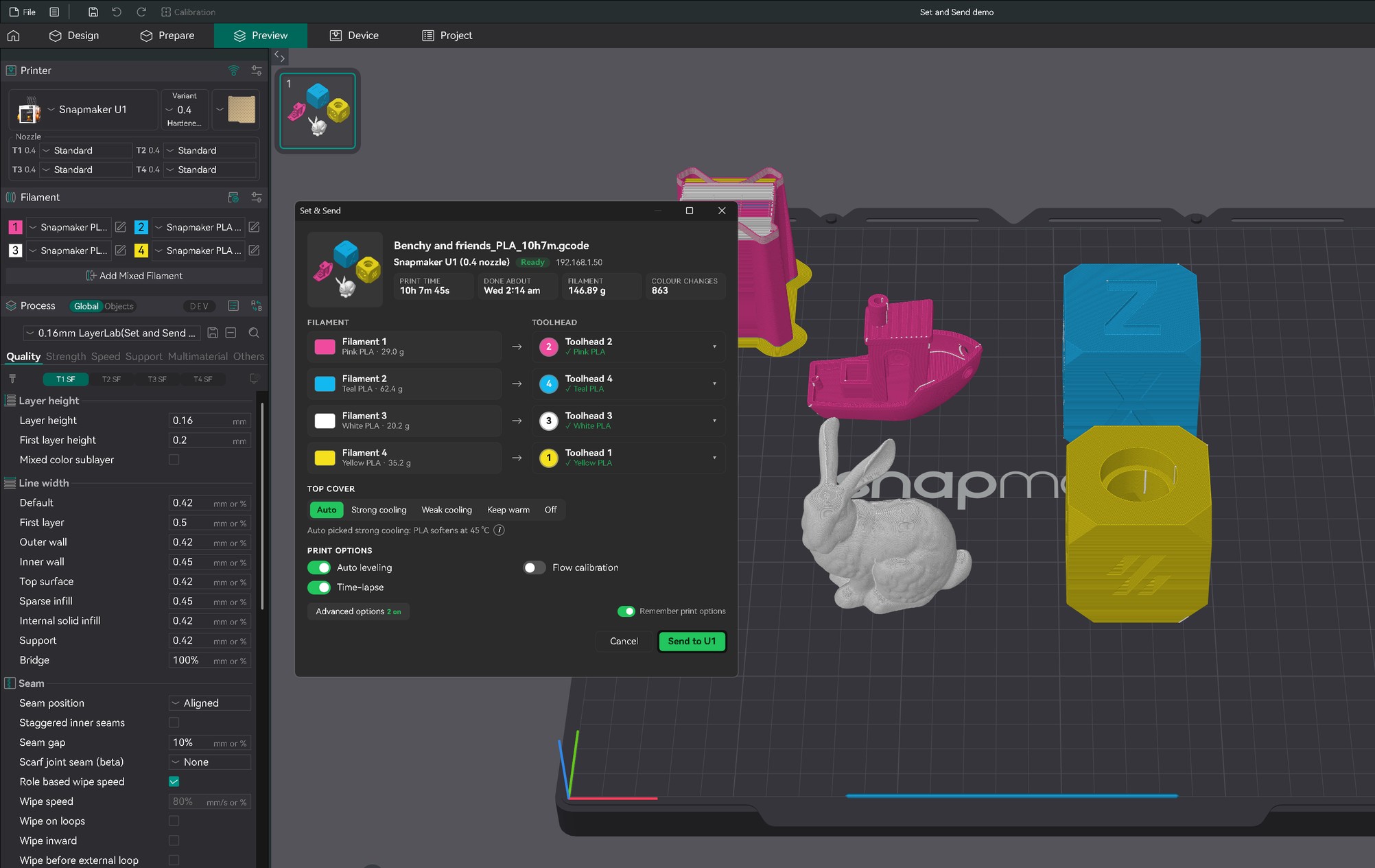
A free OrcaSlicer add-on that sets up every U1 print the way Snapmaker Orca does. Right before you print, see which toolhead prints each filament (matched to the spools on your U1), and switch on auto leveling, flow calibration, time-lapse, auto-refill and more.
What it does
Toolhead picker
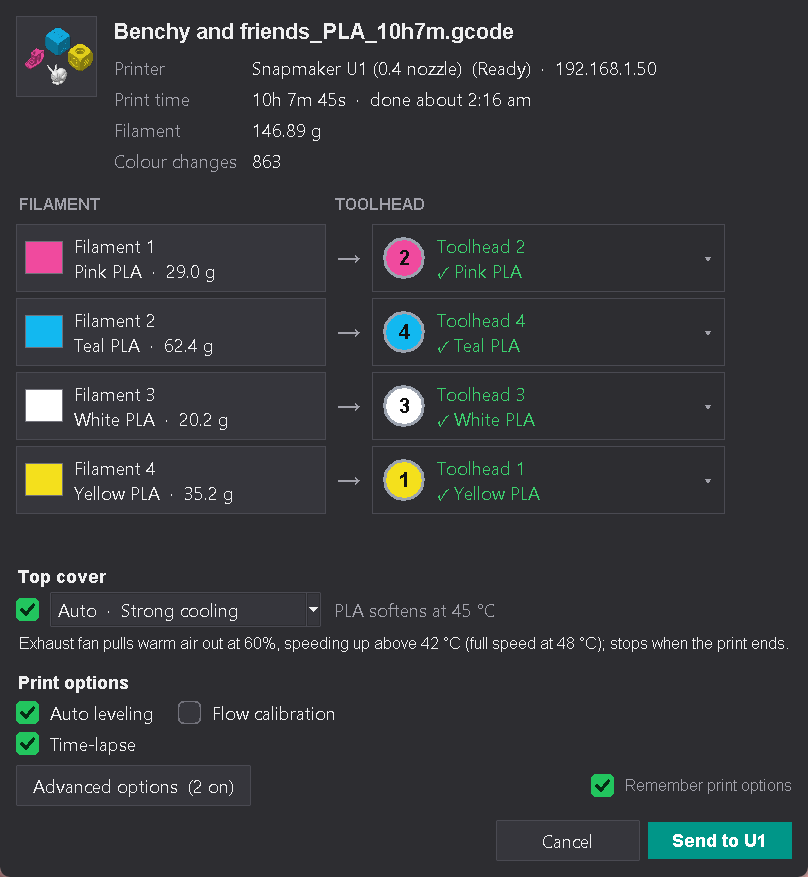
When you press Print, each filament sits next to the toolhead it will print from, shown in the colour of the spool loaded there. It reads your U1 and pre-picks the best match by material and colour; click a toolhead to change it. A material mismatch is flagged before you send.
Print options
Auto leveling, flow calibration and time-lapse, just like Snapmaker Orca, plus Advanced options: auto-refill when a spool runs out, tangle detection, unload when done and light off when done. Remembered for next time if you like.
Top cover and chamber
Sets the top cover (purifier) mode from your filaments, using Snapmaker's own rules, shows what its fans will do, and waits for the chamber to warm up. Change it for any print.
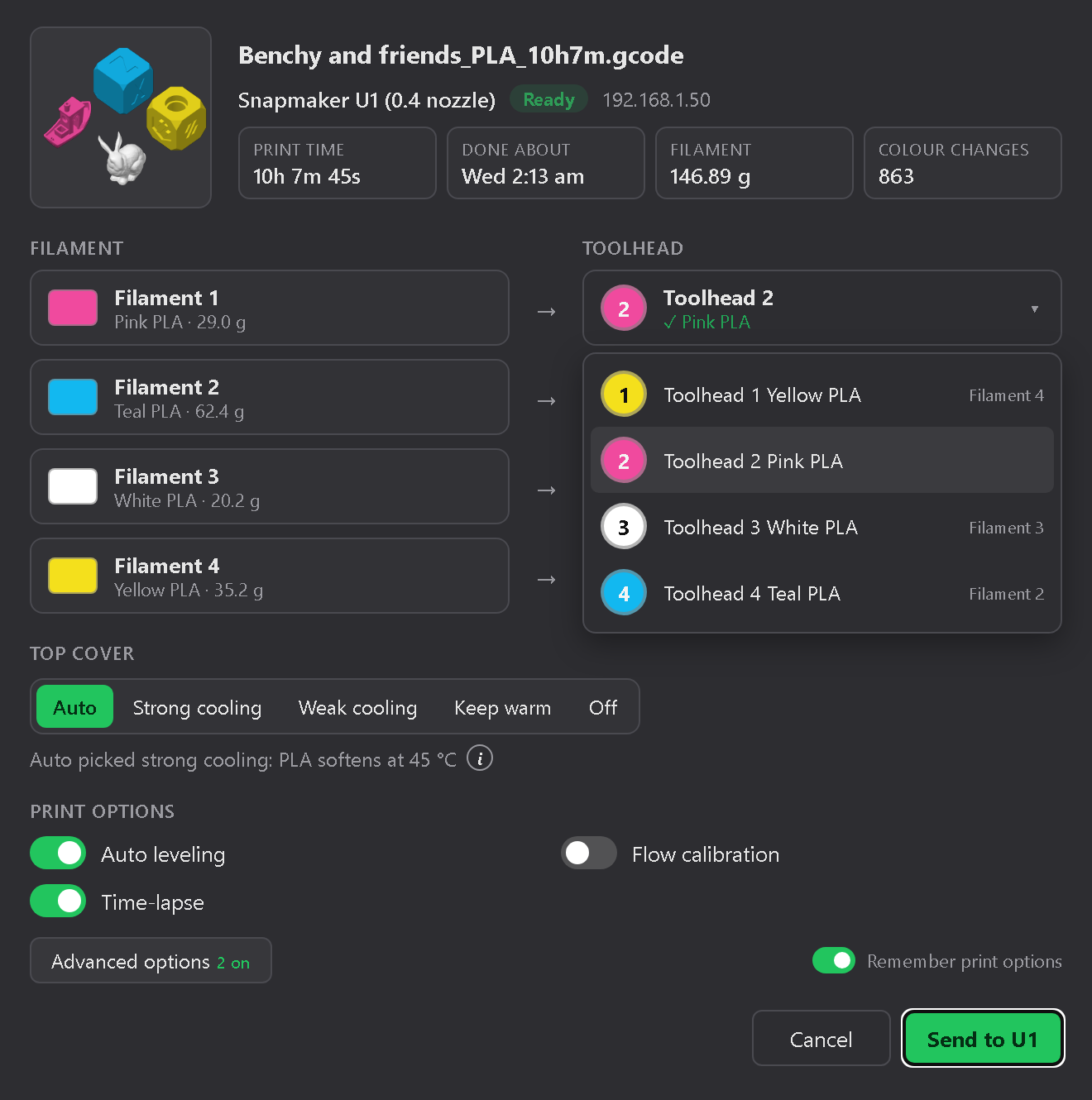
Click a toolhead to pick another.
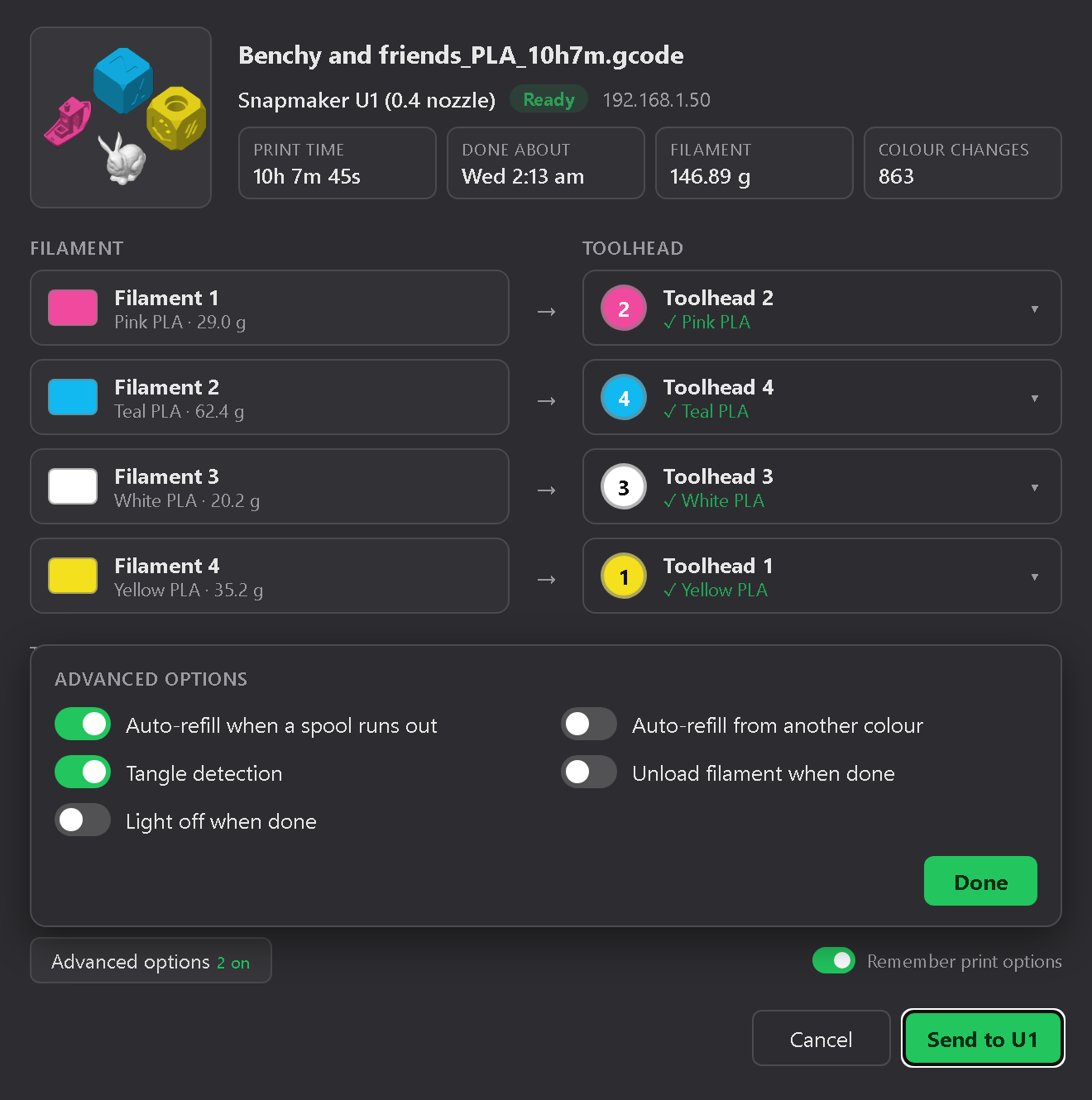
Advanced options.
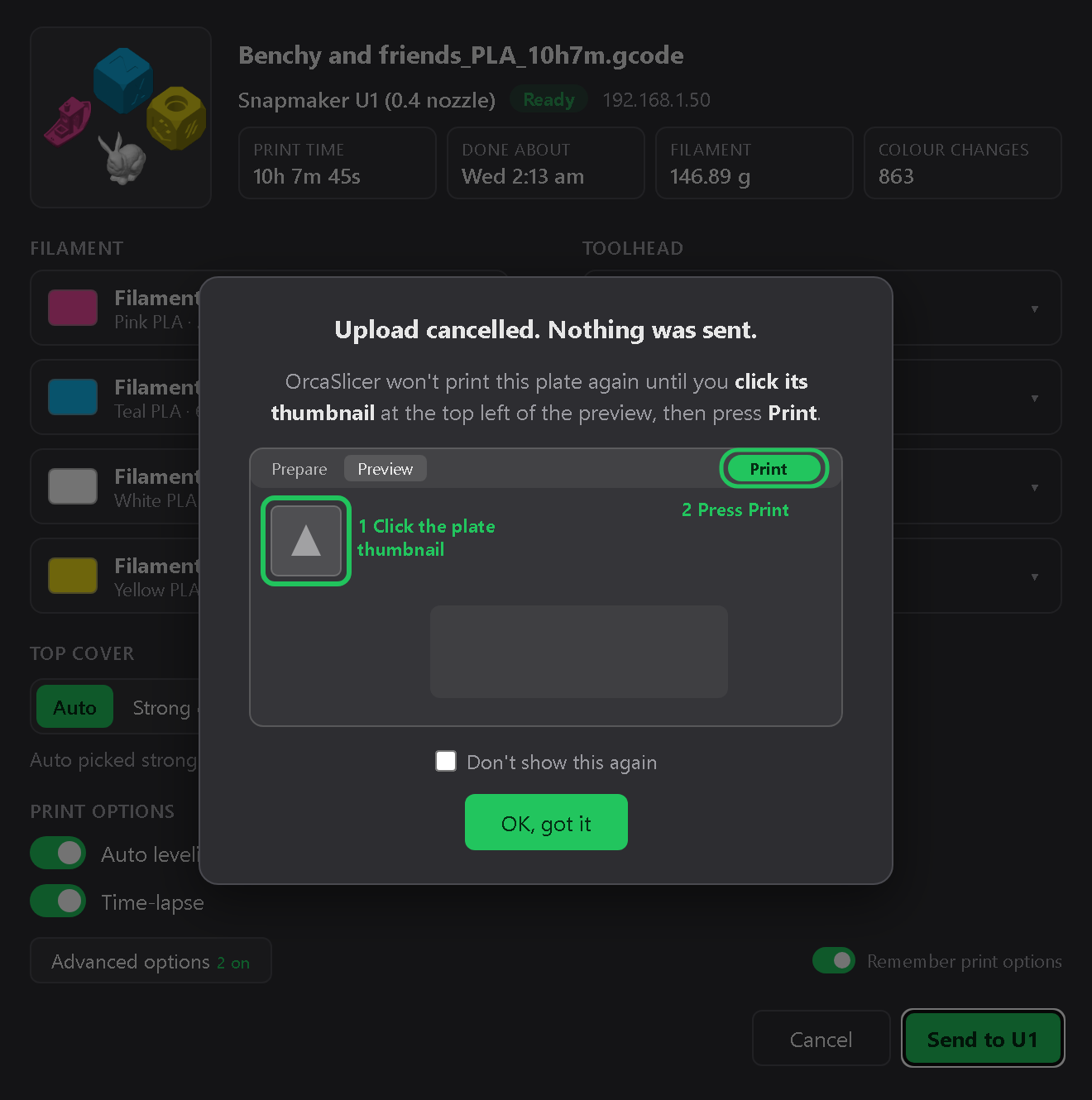
After a Cancel, it shows how to print again.
Install
Works with
| Your OrcaSlicer | Use |
|---|---|
| 2.5.0-alpha or a Nightly build (2.5.0-dev) | The plugin, from the Plugin Hub (Option A) |
| 2.4.2 (the regular release), or 2.4.0 / 2.4.1 | The script (Option B), needs Python 3 |
| 2.3 or older | Not supported: update OrcaSlicer first |
| Snapmaker Orca | Not needed: it has these options built in |
| Bambu Studio, PrusaSlicer, Cura | Not supported |
OrcaSlicer 2.5.0-alpha or Nightly
Use the plugin. Add it from the OrcaSlicer Plugin Hub with one click. Nothing else to install, about 2 minutes.
OrcaSlicer 2.4.2 (regular release)
Use the script, a manual install. Needs Python (free), about 5 minutes.
Which version do I have? In OrcaSlicer, open Help > About OrcaSlicer. "alpha" or "dev" in the version means the plugin; a plain number like 2.4.2 means the script. Both do exactly the same thing when you print.
The plugin doesn't work in 2.4.2 or older. Those versions have no plugin system and skip it without a word, so the print goes straight to the printer with no pop-up. Use the script there.
Tested on: Windows 11 (plugin and script). macOS: the plugin was tested by a U1 owner; the script hasn't been tried on a Mac yet. Linux: not tested yet.
Before you start: connect OrcaSlicer to your U1
You'll need the U1's IP address. It's on the printer's touchscreen in its network (Wi-Fi) settings and looks like 192.168.1.50.
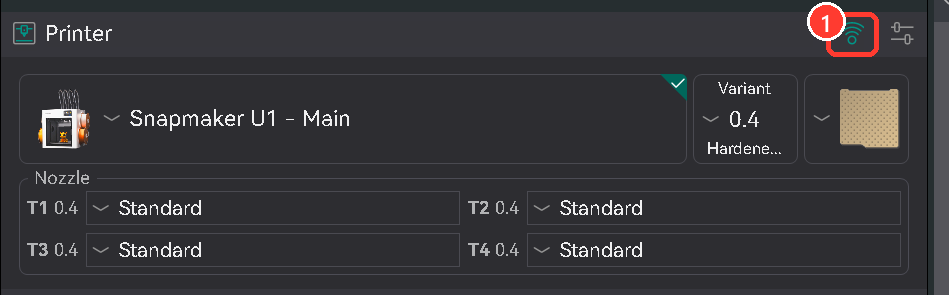
- Select your Snapmaker U1 printer, then click the Wi-Fi icon next to Printer.
- Type the U1's IP address into Hostname, IP or URL.
- Click OK.
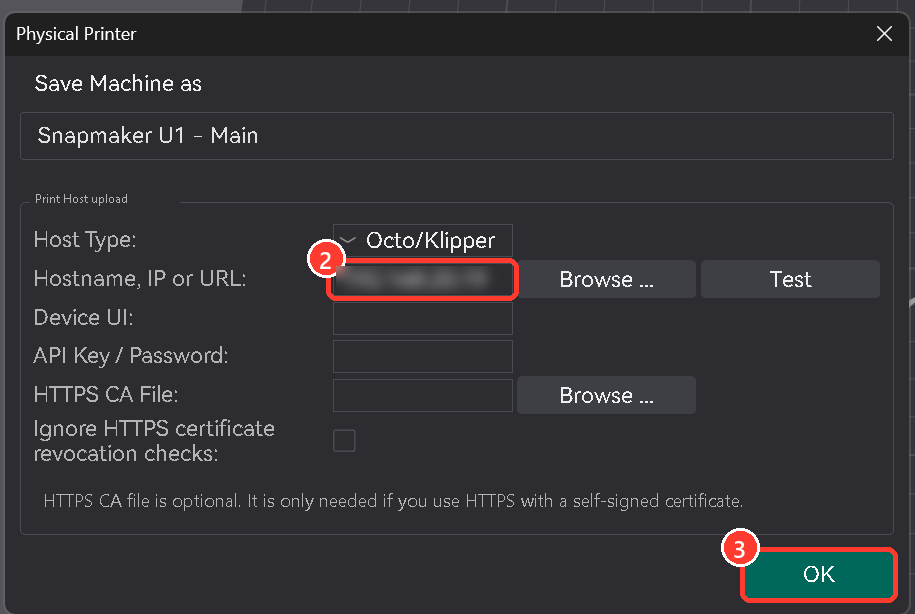
- Keep that printer selected whenever you print to the U1. If Print stays greyed out, the printer you have selected has no IP address.
Option A: Plugin (OrcaSlicer Nightly or 2.5 alpha)
Step 1: Subscribe to it. Plugins come from OrcaSlicer's website.
- Open Set & Send on the OrcaSlicer Plugin Hub in your browser and sign in with your OrcaSlicer account (the same one you use in OrcaSlicer).
- Click Subscribe.
- In OrcaSlicer, make sure you're signed in to the same account, then click the small file icon next to File at the top left. That opens the Plugins window, which lists your subscribed plugins. If Set & Send isn't listed yet, click Refresh.
- Tick the Activate box on Set & Send's row. It changes to Activated.
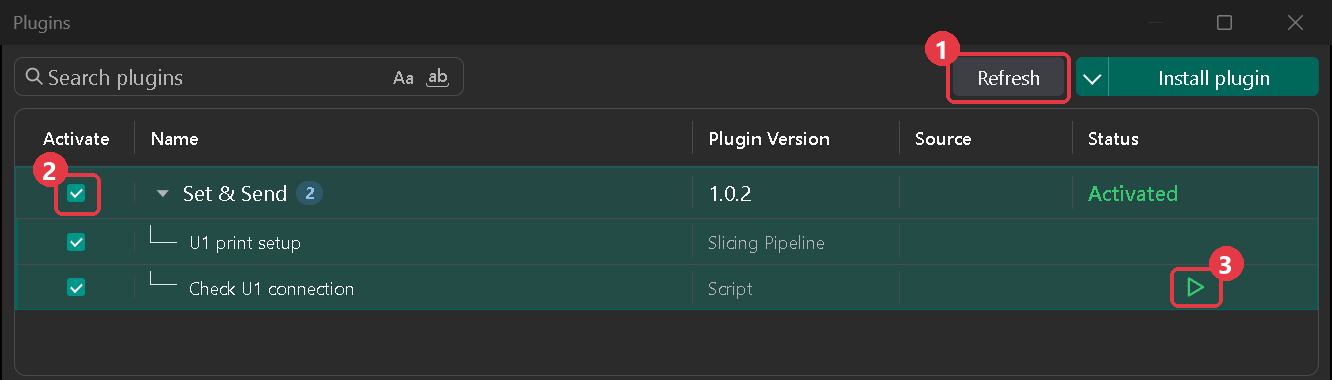
Step 2: Allow it to talk to your printer. This only happens once.
- The first time you slice for your U1 (after Step 3 below), OrcaSlicer asks whether Set & Send may connect to your printer. Check the address is your U1's and click Yes. Your first Print then goes straight to the pop-up.
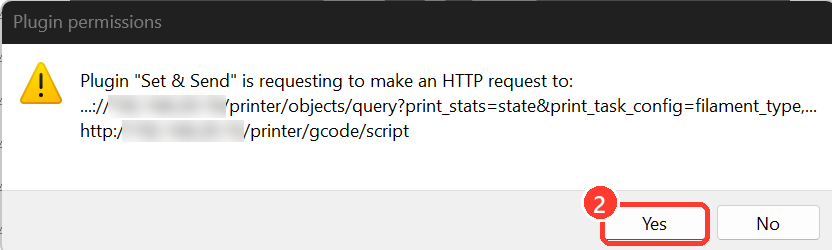
If the address isn't your U1's, click No and set the right IP with the Wi-Fi icon next to the printer name. To check the connection any time, click the play button next to Check U1 connection in the Plugins window: the status bar shows what's loaded in each toolhead.
Step 3: Turn it on in your print settings.
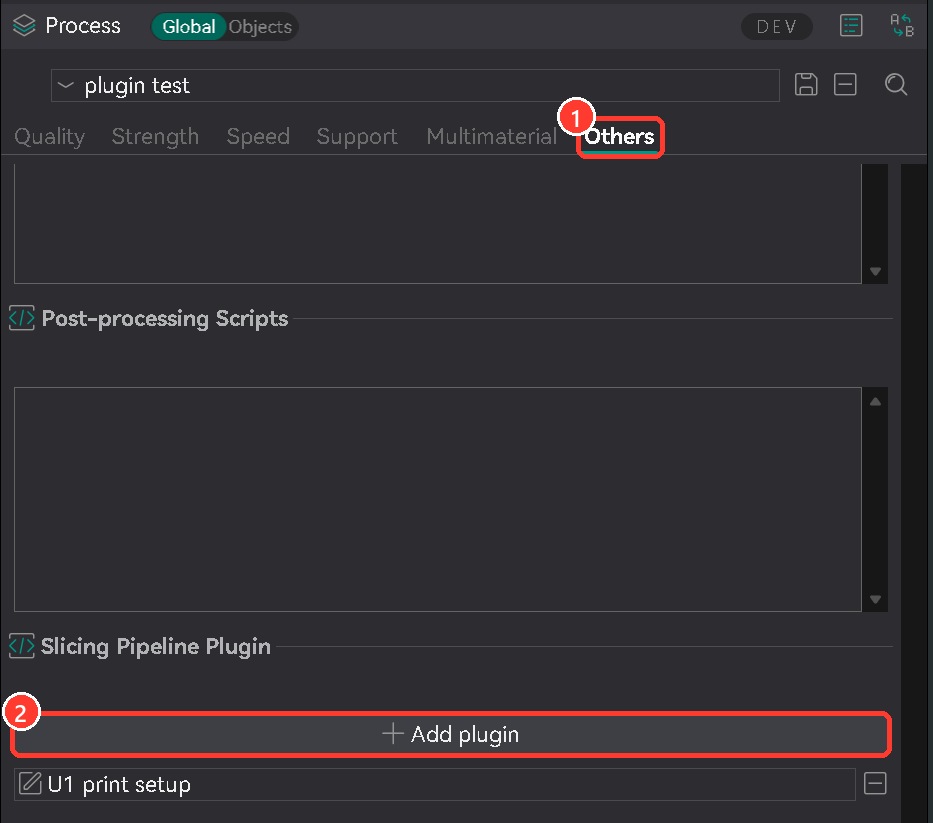
- In the Process settings on the left, make sure the settings switch next to Process isn't on Simple (hover over it to check: Advanced or Expert both work). Then click the Others tab and scroll to the bottom.
- Under Slicing Pipeline Plugin, click Add plugin.
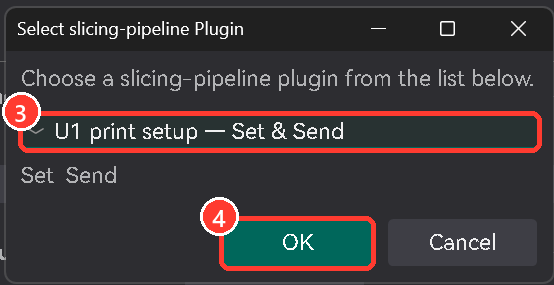
- Choose U1 print setup — Set & Send.
- Click OK.
- Click the save icon next to the preset name. U1 print setup now shows in the list.
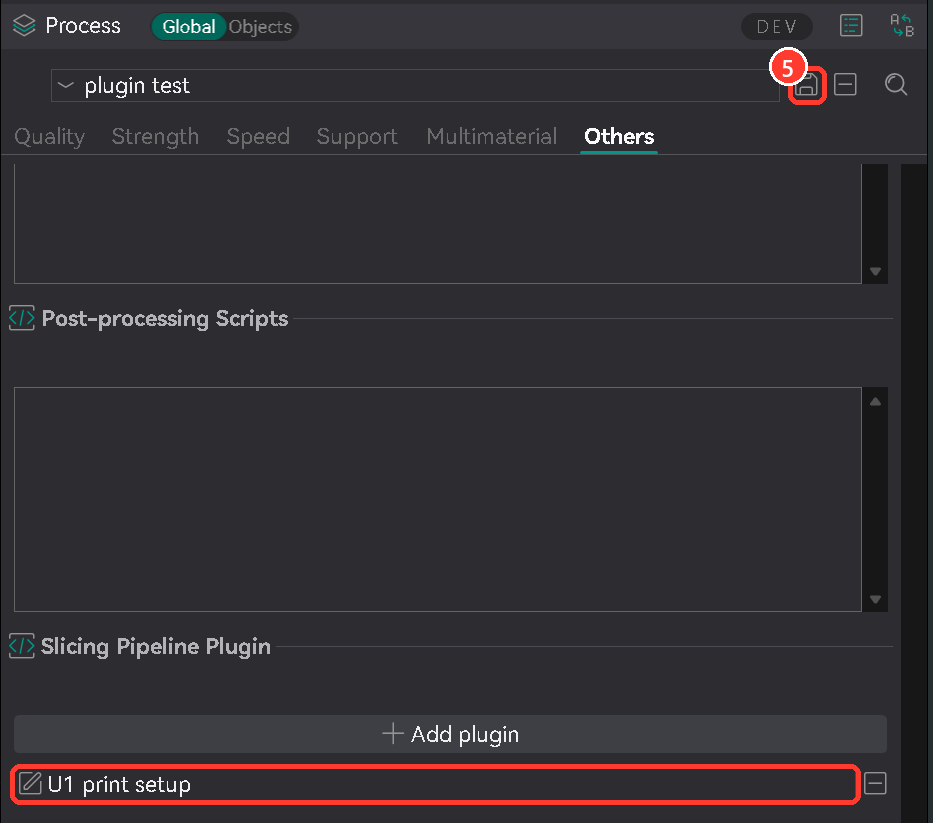
Do step 3 for each U1 process preset you print with. Step 4: press Print as usual. OrcaSlicer's own upload window opens first: click Upload & Print, and the Set & Send pop-up appears. Use Print, not Export: the pop-up and print options only happen when OrcaSlicer sends the print to your U1.
Option B: Script (regular OrcaSlicer release)
Step 1: Install Python. Download it free from python.org. In the installer, tick Add python.exe to PATH.
Step 2: Get your setup line. Download Set & Send, unzip it somewhere it can stay (for example Documents\Set and Send) and double-click set_and_send.py. A window shows the line for your computer, already selected: press Ctrl+C (Cmd+C on a Mac) to copy it.

Step 3: Paste it into your print settings.
- In the Process settings, make sure the settings switch next to Process isn't on Simple (in Simple mode the box below is hidden). Then click the Others tab and scroll to the bottom.
- Click inside the Post-processing Scripts box and paste (Ctrl+V).
- Click the save icon next to the preset name.
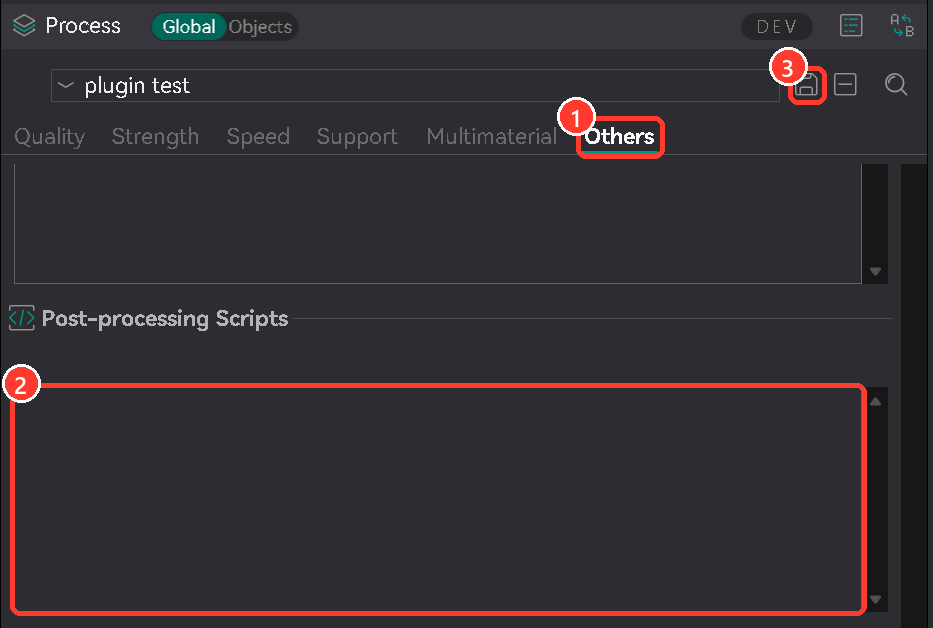
Do step 3 for each U1 process preset you print with. Step 4: press Print (not Export), click Upload & Print in OrcaSlicer's upload window, and the same print options appear in the script's own window. Use the plugin or the script on a preset, not both.
Found it helpful? Leave a tip
Set & Send is free and always will be. If it saves you time, a small tip keeps it updated as OrcaSlicer and the U1 firmware change, and helps me build more free tools.
Get notified of updates
One email when there's a new version or a fix you'll want. No spam.
More from LayerLab

Snappy for Blender
Split big models into printable parts that snap together, with connectors and clearances worked out for you. Free and Pro editions.
Explore Snappy →Join LayerLab on Patreon
Support the channel and the free tools. Members get Snappy Pro and the 3D Print Business Starter Kit included.
Become a member →Questions
Is this made by Snapmaker?
No. Set & Send is a free community tool by LayerLab. It uses the same printer commands Snapmaker Orca uses, but it isn't made or supported by Snapmaker.
Does it work with regular OrcaSlicer?
Yes: OrcaSlicer 2.4.0 to 2.4.2 use the script version (Option B). The plugin version needs OrcaSlicer 2.5.0-alpha or a Nightly build until plugins arrive in a regular OrcaSlicer release. OrcaSlicer 2.3 and older aren't supported.
Does it work on a Mac?
Yes. It's been tested on macOS by a U1 owner, from slicing right through to printing. Printer access works the same way on a Mac (see Step 2). Linux hasn't been tested yet, so I'd love to hear how it goes.
Is it safe?
It only talks to your own printer on your home network: no internet, and nothing about you or your models is sent anywhere. If the printer is busy or can't be reached, it stops the upload and tells you why.

Thanks for grabbing Set & Send!
It's free, and it always will be. I make these tools in my spare time, so if it saves you a few headaches, a small tip means a lot. It keeps Set & Send updated as OrcaSlicer and the U1 firmware change.
The tip opens a secure checkout in a new tab, so your download stays right here. Thank you so much ❤️
No tip this time, just download